KB Article #3013
As a CollisionLink Shop administrator, you have the ability to add user accounts for anyone in your shop to log in and process orders. Once added, these accounts can be changed or deleted at any time. Note: New users will not have access to any jobs or unsent orders that were created before their account.
View a short video on this topic!
- Click Account Management.

- Click Manage Users.
- Fill in the provided fields in the Add User section (all fields are required):
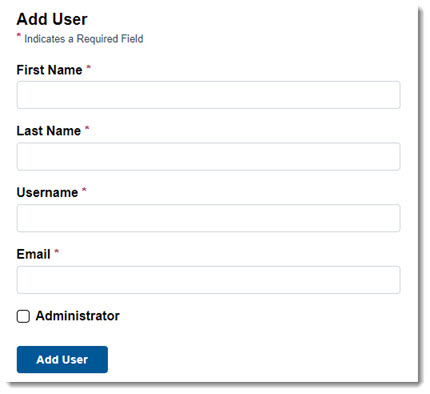
- First Name
- Last Name
- Username: Type a unique username you want your CollisionLink Shop user to log in with. A valid username must be six to 20 alphanumeric characters and must not include any special characters, such as !, @, #, $, %, ^, &, or *.
- Email: Type the user's email address.
- Administrator: Check the box if the user should be set up as a backup administrator for your CollisionLink Shop account.
- When ready, click Add User. The new user's account will display in the Users section if all information is entered correctly.

Once added, an email will be sent to the email address entered, providing the new user a link to CollisionLink Shop (https://www.collisionlinkshop.com/). They will use this link to access their account in CollisionLink Shop, fill in their title and phone number, and create their permanent password.
- Click Account Management.

- Click Manage Users.
- Find the user you want to disable from the Users section and click the trash can icon to permanently remove the user's account.
