KB Article #3019
CollisionLink Shop users can set up text or email notifications to be sent to anyone in the shop when a new note, photo, or response is received from a dealer.
As notifications are enabled, they will be marked with a green checkmark.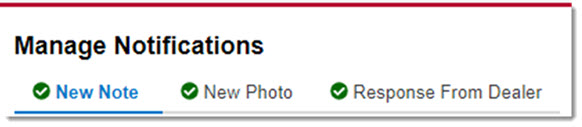
Click here for a list of all participating mobile carriers.
Watch a short video on this topic!
To set up a notification:
- Click Account Management.
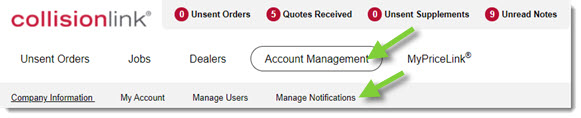
- Click Manage Notifications.
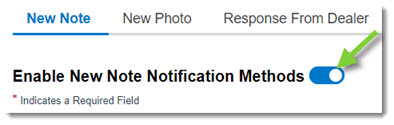
- Click the tab of the appropriate notification type (New Note, New Photo, or Response From Dealer).
- Click the Enable Notification Methods toggle to turn notifications on.
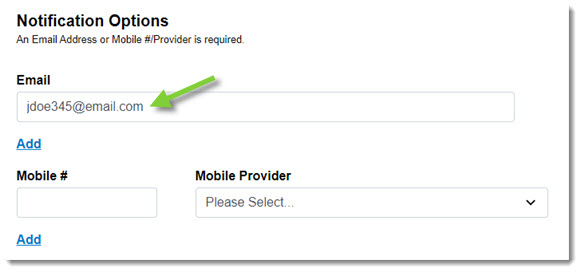
- To receive notifications via email, enter the address where notifications should be sent.
- Note: If notifications should be sent to more than one email address, click Add and repeat the process.
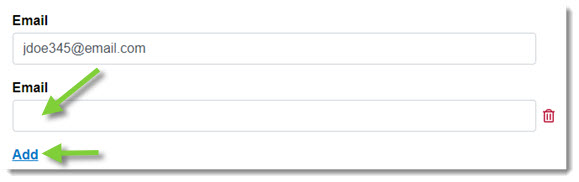
- Note: If notifications should be sent to more than one email address, click Add and repeat the process.
- To receive notifications via text, enter the Mobile # in the provided field and choose the Mobile Provider from the drop-down.
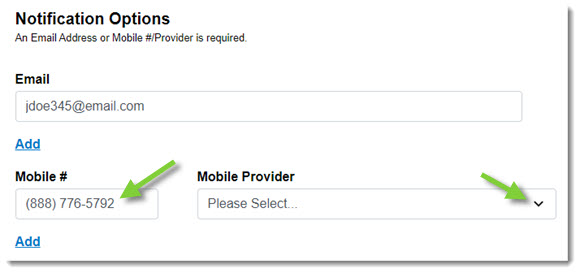
- Note: If notifications should be sent to more than one phone number, click Add and repeat the process.

- Note: If notifications should be sent to more than one phone number, click Add and repeat the process.
- In the Receive Notifications section, choose when the notification should be sent to your recipient(s).
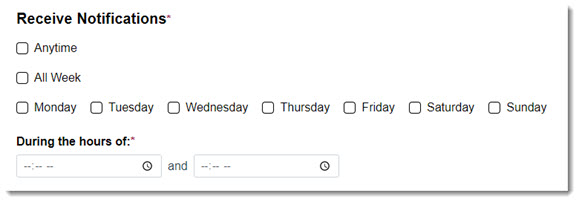
- Anytime: Check this box to select all days and hours at once (sets notifications to anytime, 24/7).
- All Week: Check this box to select all the days at once. (You will need to select the desired hours.)
- To choose specific days of the week, check the appropriate box(es). (You will need to choose the desired hours.)
- If All Week or specific days were selected, use the During the hours of section to choose the hours you wish notifications to be sent (e.g. Between the hours of 8:00 A.M. and 6:00 P.M.). You can either type in your preferred hours or click the clock icon (
 ) to select the time.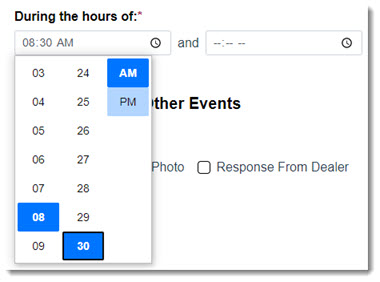
- If you'd like to apply these settings to the other two notifications, click the All button.
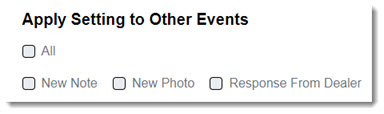
-or-
To apply these changes to a single notification, check the box for that notification. - When ready, click Save.
- A message will display, confirming your updates were saved.
- If you want to set up additional notifications individually, click the tab for the notification you wish to set up (New Note, New Photo, or Response From Dealer) and repeat this process.
Participating Mobile Carriers
Available mobile carriers include the following:
- Verizon/Tracfone/Xfinity Mobile
- AT&T
- T-Mobile/Mint Mobile
- Appalachian Wireless
- Bell Canada
- Bell MTS
- Bluegrass Cellular
- Boost Mobile
- C Spire
- Carolina West Wireless
- Cellcom
- Cellular One
- Cellular One of North East Arizona
- CenturyLink
- Chat Mobility
- Choice Wireless
- Colorado Valley Communications
- Corr Wireless Communications
- Fido
- Illinois Valley Cellular
- Inland Cellular
- Metro by T-Mobile
- Nextel
- PC Mobile Canada
- Rogers Wireless
- Telus
- ThumbCellular
- US Cellular
- Virgin Plus
- West Central Wireless