KB Article #6944
OEM-provided digital photos are tagged to certain parts to view within OEM catalog sections. These photos make it much easier to identify and validate parts, reducing the time needed to process orders.
Note: Digital photos are only available for FCA at this time.
To view digital photos:
- Open the OEM catalog by clicking the
 icon from any part in your unsent order.
 - If the part is in the catalog with that part number fitting the vehicle, the Section View will open.
- Look for the camera icon in the Info column of the Part Results table next to the desired part.

- Click the icon to open the digital photo(s).
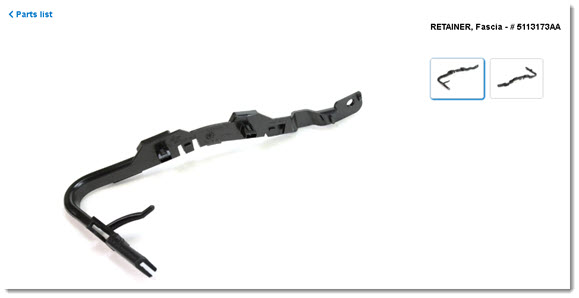
- If more than one photo is available, click through the thumbnails in the upper right to view more angles of the part.

- If more than one photo is available, click through the thumbnails in the upper right to view more angles of the part.
- When finished, click < Parts List to return to the order.
- Look for the camera icon in the Info column of the Part Results table next to the desired part.
- If multiple parts display and no direct match was found:
- Look for the camera icon under the Info column next to the desired section.
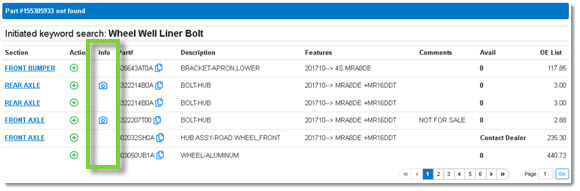
- Click the icon to open the digital photo(s), which will appear in a new window.
- If more than one photo is available, click through the thumbnails in the upper right to view more angles of the part.
- If more than one photo is available, click through the thumbnails in the upper right to view more angles of the part.
- When finished, click the X in the upper right-hand corner to close the window.
- Look for the camera icon under the Info column next to the desired section.