KB Article #2771
Notes can be used to indicate a desired ship date or any special instructions you need to provide the dealer. Once an order is sent, notes can be updated, reviewed, or resent to the dealer from your Jobs List.
Click the links for more information on adding/viewing notes:
To add a note to an unsent order:
- From the Unsent Orders List, click the vehicle name.

- Type your note in the Add Note box. Note: You may only enter one note prior to sending the order to your dealer. This note may be edited at any point prior to sending the order.
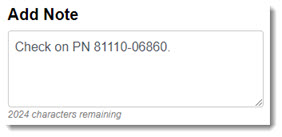
- Click Save to save the note or click Send if the order is ready to be sent to the dealer.

To add a note to a job (sent order):
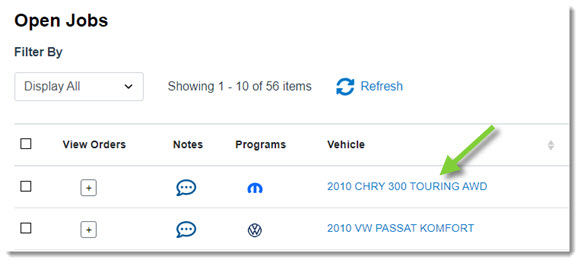
- From your Jobs List, click the vehicle name.
- If there are multiple orders for this job, select the correct order from the Orders listed.

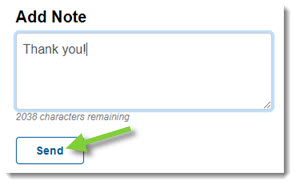
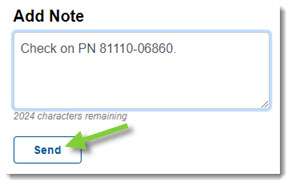
- Type your note in the Add Note text box and click Send.
- CollisionLink will alert you every time a new note is received. Hover your mouse over Unread Notes in the Shop Summary section to see any vehicle with a dealer response. Click the vehicle to view and respond to the note.
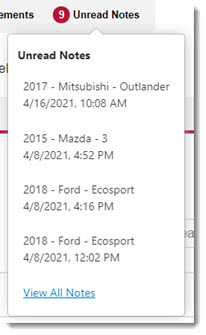
-or-
From your Jobs List, new notes will be indicated by the icon. Click the icon to view the new note or click the Vehicle name to view the note and respond.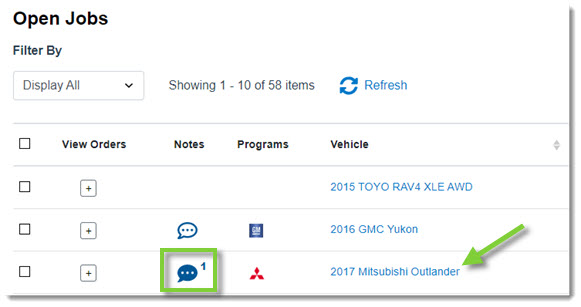
- Under the Notes section, the dealer's response will display, along with your initial note.
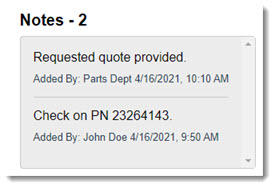
- If you want to respond to a dealer note, type your note in the Add Note box and click Send.