KB Article #6717
If you have multiple orders that are ready to go as soon as they are imported into CollisionLink, you can send them out to your dealers all at once from the Unsent Orders tab.
Note: If an order has non-OE parts that your dealer has provided an upfront price for the OE equivalent, the order Status will show Order contains Upfront Pricing, please review. It will not be sent to the dealer. Once all other selected orders have been sent, it will remain in the Unsent Orders tab to be reviewed. 
To send multiple orders:
- From the Unsent Orders tab, verify the dealer you want to order from is displayed in the Dealer field for each of the orders. If not, click the drop-down menu to select the one you want from the list. Note: A dealer must be assigned to the estimate before it can be sent.

- If needed, type a repair order number in the RO # field for each order.
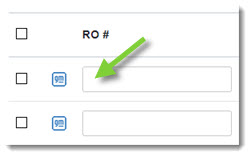
- Check the box to the left of each order you want to send.

- When ready, click Send.
- Depending on the OEM, you may need to add payer information to the order. Note: This section will appear regardless if the Payer field of the unsent order is filled in or not, as the payer option still needs to be chosen.
- Choose the appropriate payer option (Insurance, Fleet Company, or Customer Pay).
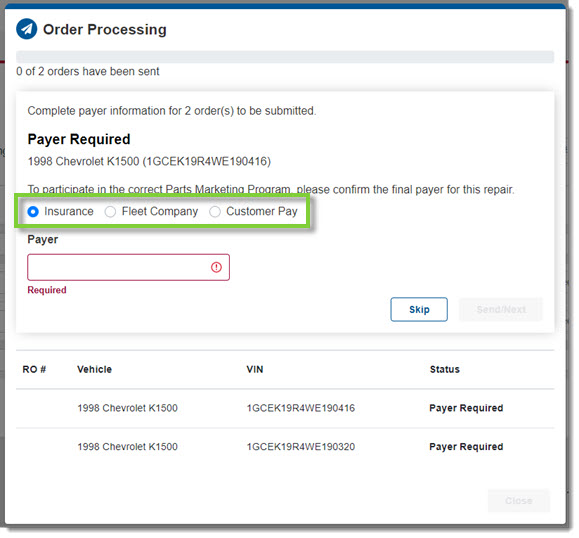
- If the Payer field is empty, add the payer's name.
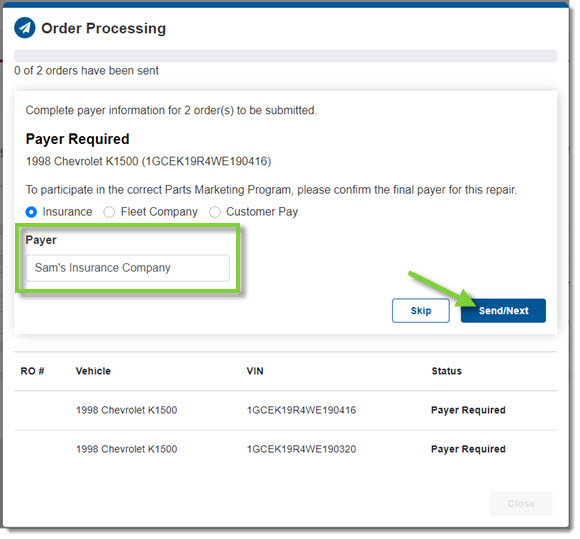
- When ready, click Send/Next.
- For each order, repeat the process above.
- A status bar will show across the top as you fill in payer informaiton.

- Each order's status will update as you click Send/Next.

- A status bar will show across the top as you fill in payer informaiton.
- Choose the appropriate payer option (Insurance, Fleet Company, or Customer Pay).
- Once all orders have been sent, click Close.
