KB Article #3579
Orders can be resent through CollisionLink without reimporting your estimate. This allows you to quickly update an order under the following conditions:
- Part lines have an incorrect Request status (parts sent as Quote, but should be Order).
- The order was cancelled by the dealer.
- The dealer requests the order be resent.
- The estimate was sent to the wrong dealer on accident.
Note: If pricing for a part needs to be changed, you need to reimport the estimate.
To resend an order:
- From the Jobs tab, locate the vehicle that needs resent and click the vehicle name to view.

- Click Resend Job.

- The Resend Job tab will display all parts imported from the estimate that were sent on the previous order(s). Note: Parts manually added to earlier orders from CollisionLink will not display. To resend, simply add the part again. (Click here for more on adding parts.)

- Verify the correct dealer is listed. If not, use the drop-down to select the correct dealer.

- Check the box(es) next to each part you wish to resend. (Check the box at the top to select all parts.)
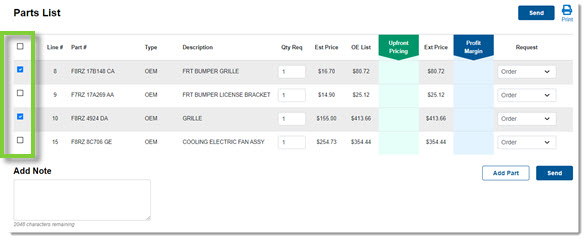
- Verify the Request status for each part and update if needed:

- Quote: The dealer will provide a price quote on these parts but won't invoice until you accept the quote.
- Order: The dealer will process and invoice these parts upon receipt of the order.
- Do Not Process: This will notify the dealer you have the part in your stock and it should not be invoiced.
- Use the Add Part option to add additional parts to the order. (Learn more about adding parts to an order.)

- Use the Add Note box to add any new information you wish to send to your dealer.

- Any photos previously sent will display in the Attached Images section. Click the X next to any photo that you do not wish to resend. (You cannot add new images to an order.)

- Click Send to send the new order to your dealer.