KB Article #2832
Once your order is sent to your dealer, it will move to the Jobs tab of CollisionLink so you can track its progress.
Dealers will respond to your order:
- With a response to your quote request. This will allow you to review and accept the pricing without having to pick up the phone.
- If they have questions or need additional information. Use the notes feature to quickly send information about the order to your dealer.
- When your order has been invoiced/completed by the dealer. This will help you keep track of part delivery dates so you can keep your customers up to date on the progress of their vehicles.
Note: An alert message will display if the transaction is currently open by another salesperson at your shop or by the dealership that received the transaction.
View a short video on this topic!
To review a quote from a dealer:
- Once a dealer responds with a quote, a notification will display at the top of all CollisionLink windows. Hover your mouse over the Quote Received notification and then click the quote to view its details. Note: Jobs will automatically drop off the notification list after three days or if the Dealer Response status of the quoted part(s) is changed from Quoted to Invoiced.

- Review the part lines that show as Quoted in the Dealer Response column.

- The price offered will display in the Buyer Cost column. Refer to the Profit Margin to see the potential profit your shop will make on the part if it is purchased at the buyer cost displayed. Note: The profit margin reflected is based on the estimated price of the part.
- For any of the parts you wish to order, verify Order shows in the Request column.
- Select Decline for any parts you don't want.
- Click Respond To Dealer to send the job back to the dealer to fulfill the order and invoice the parts.
- Once your dealer has invoiced the parts and provided a deliver date, the Status on the Jobs tab will change to Submitted.
To respond to questions on an order:
- If a dealer has questions about your order, they will respond with a note. CollisionLink will display an alert at the top of every window, letting you know when notes arrive from your dealer. Hover your mouse over the Unread Notes notification and then click the vehicle note to view.

- Review the dealer note. If needed, add a response or update the order if needed.

- Click Respond To Dealer to send your notes or changes back to the dealer.
To review dealer responses to invoiced orders:
- Click the Jobs tab to access your sent orders. If needed, click Refresh to update the Open Jobs List.

- Find the desired vehicle on the Open Jobs List and click the vehicle name to view the Job Details.

- If there are multiple orders for this job, select the correct order from the Orders grid. Note: Sent orders will display a CLK transaction number, the date the order was sent, and/or RO if it was included when sent.

- Review all parts on the order's Parts List. Each part line provides the following information:
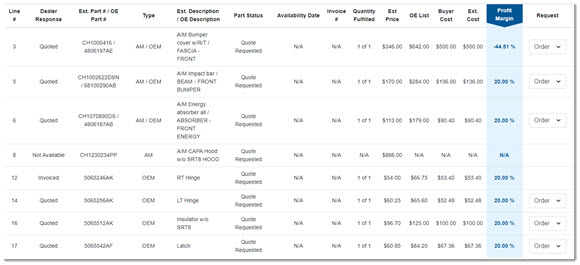
- Dealer Response: This column expresses the Dealer's actions and could be any of the following:
- Invoiced: These are parts you have ordered that your dealer will fulfill.
- Quoted: These are parts you sent to your dealer for a price quote.
- Backordered: The part is temporarily out of stock.
- Not_Identifiable: These are parts that could not be found in the parts catalog for this OEM.
- Discontinued: These are parts that are no longer being produced by the OEM.
- Not_Bidded: These are parts that your dealer did not include in their response with a quoted price.
- N/A: These are part lines submitted that your dealer did not include in their response (e.g. a part included in the estimate but was not ordered or quoted because you submitted it as an item you have in stock).
- Est. Part #/OE Part #: The OE part number or the non-OE and OE part numbers provided by your estimating system.
- Type: The type of part(s) that display in the Est. Part #/OE Part # column.
- Part Status: This column displays the Shop's actions and could be any of the following:
- Quote Declined: A quote was submitted by the dealer, but you did not purchase.
- Quote Accepted: A quote was submitted by the dealer and you purchased the part.
- Quote Requested: You requested a quote on the part and are waiting to receive.
- Ordered: The part was ordered from the dealer.
- Do Not Process: The part was not ordered from the dealer and will not be sent.
- Availability Date: When the parts will arrive from the dealer.
- Invoice #: The invoice number provided by the dealer.
- Quantity Fulfilled: The total number of parts that were ordered and the total number being sent.
- Est. Price: The estimated list price provided in your estimate data.
- OE List: The OEM's suggested retail price for the part.
- Buyer Cost: The price you are paying for the OE part.
- Ext. Cost: The total cost for the quantity of parts ordered.
- Profit Margin: The potential profit your shop will make on the part if it is purchased at the buyer cost displayed. If the dealer provided a quote for an equivalent OE part, the profit margin reflected is based on the estimated price of the non-OE part.
Notes:- The total Profit Margin % is calculated based on the following formula: (Total OE List Price for all OEM parts + total Est. Price for all non-OEM parts) - total Ext. Cost / (Total OE List Price for all OEM parts + total Est. Price for all non-OEM parts).
- OEM part profit margin, by part line, is calculated on the following formula: (OE List Price for that part - Ext. Cost) / OE List Price for that part.
- Non-OEM part profit margin, by part line, is calculated based on the following formula: (Est. Price for that price - Ext. Cost) / Est. Price for that part.
- Dealer Response: This column expresses the Dealer's actions and could be any of the following:
If there are any issues with the order, use the Resend Job feature to reopen and update.