KB Article #6942
Part information can be found directly within a CollisionLink Plus order with the OEM catalog. No need to launch a separate application to review part info--everything you need is now in one place to simplify your daily workflow.
There are two key pieces to the OEM catalog:
Want to learn more? Watch our video!
Accessing the OEM Catalog
The OEM catalog can be accessed within an unsent order. Note: It cannot be accessed while resending a job or creating a supplement.
To access, click the EPC icon to the left of the appropriate part in the Parts List.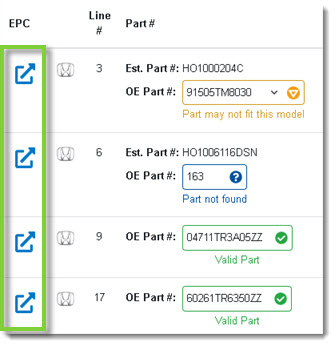
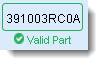
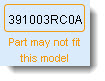
The OEM catalog uses CollisionLink's VIN scrubbing to identify parts. As a result, the catalog will display different information based on the icon displayed in the Part # column.
| Icon | If This Icon Appears... | If the EPC Icon is Clicked From This Part... |
 |
The part number is valid for the year, make, model series, and/or option codes of the vehicle. |
The section illustration for the part number will display. (Click here for more information.) The part number will be highlighted in green in the Parts List Table of the catalog, labeled Valid Part. |
 |
The part number is valid for the year, make, and model; however, it cannot validate the model series and/or option codes of the vehicle. |
The section illustration for the part number will display. (Click here for more information.) The part number will be highlighted in amber in the Parts List Table of the catalog, labeled Part may not fit this model. |
 |
The part number has not been found. In this case, the catalog cannot confirm the part is valid for the year, make, model, and/or option codes of the vehicle. |
The catalog will display one of the following: - A very similar part, likely an updated version of the original part, based on the part number itself. The section illustration for the similar part will display. (Click here for details.) - A list of related sections based on a keyword/part number search of the Estimating Description. A red banner will appear across the top of the window, indicating the part number is invalid for the VIN. Review the available options and click the appropriate Section name to view part information. (Click here for details.) |
 |
Neither the part nor the part number have been found. |
The catalog will display a list of related illustrations based on the Estimating Description. Review the available options and click the appropriate Section name to view part information. (Click here for details.) A blue banner will appear across the top of the window, indicating the part was not found in the catalog. |


Reviewing Part Information in the OEM Catalog
Part information will vary in display based on how the part or part number is found within the OEM catalog. See the table above for more details.
Valid Parts
If the part is scrubbed as a valid part:
The OEM catalog will launch in a new window, showing the section illustration the part belongs to and highlighting the part callout.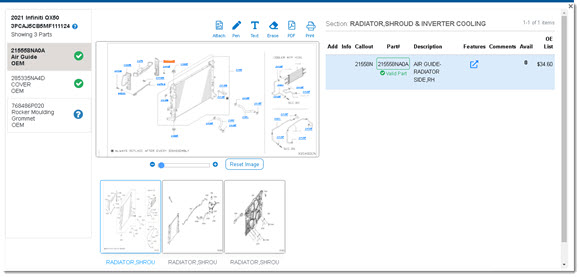
- The selected part will be listed on the right-hand side of the new window. (Click here for more information on the details displayed.)
- Click on other callouts in the illustration to check for additional parts. (Click here to learn about callouts.)
- You can alter the illustration using the options in the top right. (Click here to learn about editing illustrations.)
- If the part appears in other sections, click the section thumbnail below the illustration to navigate to the other sections.

- Use the left-hand panel to view and switch between the parts currently in the order. Each item will show the part number and a brief description.
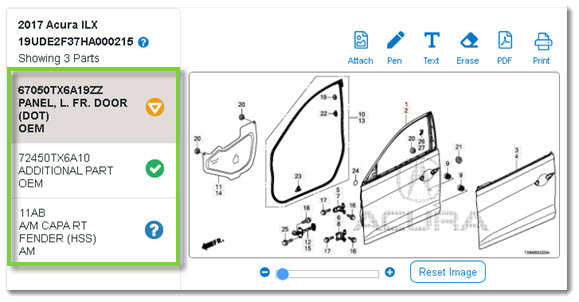
- FCA Vehicles Only: Use the search bar across the top or the breadcrumb navigation to search within the OEM catalog. (Learn more about Navigating the OEM Catalog.)

- To return to the unsent order, click the X in the upper right-hand corner of the window.
Parts That May Not Fit the Model
If the part is scrubbed as a part that may not fit the model:
The OEM catalog will launch in a new window, showing the section illustration the part belongs to and highlighting the part callout.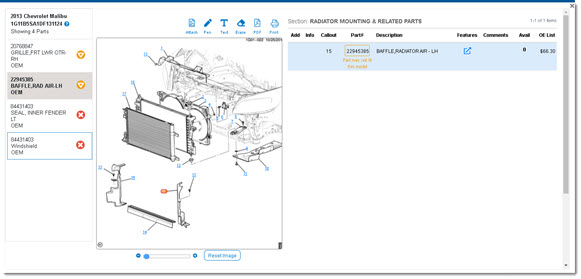
- The selected part will be listed on the right-hand side of the new window. (Click here for more information on the details displayed.)
- Click on other callouts in the illustration to check for additional parts. (Click here to learn about callouts.)
- You can alter the illustration using the options in the top right. (Click here to learn about editing illustrations.)
- If the part appears in other sections, click the section thumbnail below the illustration to navigate to the other sections.
- Use the left-hand panel to view and switch between the parts currently in the order. Each item will show the part number and a brief description.
- FCA Vehicles Only: Use the search bar across the top or the breadcrumb navigation to search within the OEM catalog. (Learn more about Navigating the OEM Catalog.)
- To return to the unsent order, click the X in the upper right-hand corner of the window.
Invalid Parts
If the part is scrubbed as an invalid part but the estimating system produces a potentially valid part:
The OEM catalog will launch in a new window. A keyword/part number search has found a similar part that may fit the vehicle (e.g. if the part has been updated and has a slight change in the part number).
- The selected part will be listed on the right-hand side of the new window. (Click here for more information on the details displayed.)
- Click on other callouts in the illustration to check for additional parts. (Click here to learn about callouts.)
- You can alter the illustration using the options in the top right. (Click here to learn about editing illustrations.)
- If the part appears in other sections, click the section thumbnail below the illustration to navigate to the other sections.
- Use the left-hand panel to view and switch between the parts currently in the order. Each item will show the part number and a brief description.
- FCA Vehicles Only: Use the search bar across the top or the breadcrumb navigation to search within the OEM catalog. (Learn more about Navigating the OEM Catalog.)
- To return to the unsent order, click the X in the upper right-hand corner of the window.
If the part is scrubbed as an invalid part and produces a keyword search:
The OEM catalog will launch in a new window, showing a list of related parts and illustrations. The keyword/part number used in the search will display at the top. A red banner will appear across the top, indicating the part is invalid for the provided VIN.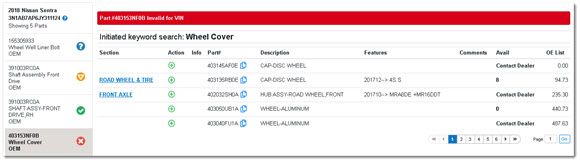
- To add the part from the search results directly to your order, click the Add icon.
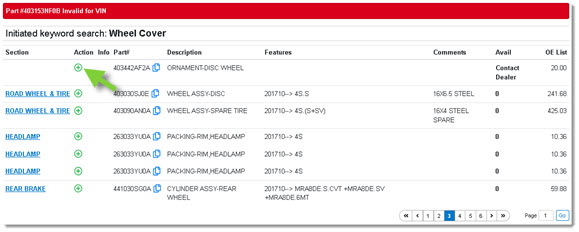
- Once added, a success message will appear.

- Once added, a success message will appear.
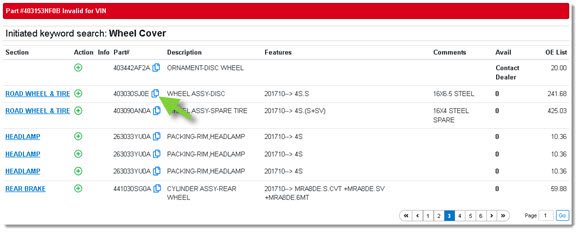
- To copy the part number to the computer clipboard, click the Copy icon. This allows you to paste the part number into another application. Note: There is no alert message for copying a part number.
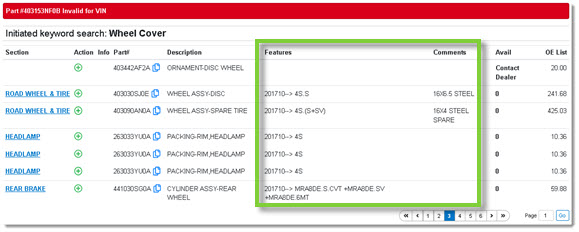
- Features and Comments for the part will be provided.
- FCA Vehicles Only: If applicable, a camera icon (
 ) will appear if OEM-provided digital photos of the part have been added to the catalog. Click the icon to view the photos. (Learn more about Viewing Digital Photos.)
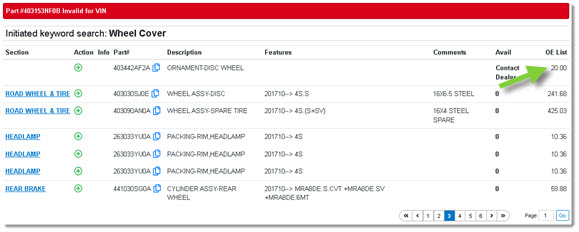
 - The part's price, MPL or List Price, will appear on the right.
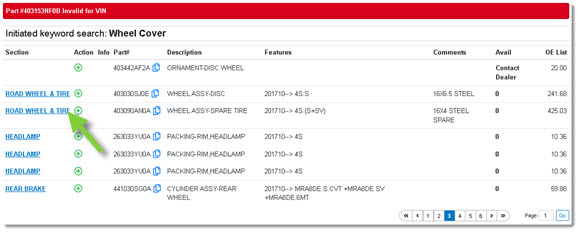
- For more information on a part in the list, click the Section name to open it.
- Once inside the illustration, the selected part will be listed on the right-hand side. (Click here for more information on the details displayed.)
- Click on other callouts in the illustration to check for additional parts. (Click here to learn about callouts.)
- You can alter the illustration using the options in the top right. (Click here to learn about editing illustrations.)
- If the part appears in other sections, click the section thumbnail below the illustration to navigate to the other sections.
- Use the left-hand panel to view and switch between the parts currently in the order. Each item will show the part number and a brief description.
- FCA Vehicles Only: Use the search bar across the top or the breadcrumb navigation to search within the OEM catalog. (Learn more about Navigating the OEM Catalog.)
- To return to the unsent order, click the X in the upper right-hand corner of the window.
Parts Not Found
If the part is scrubbed as a part not found in the catalog:
The OEM catalog will launch in a new window, showing a list of related parts and illustrations. The keyword/part number used in the search will display at the top. A blue banner will appear across the top, indicating the part has not been validated for the provided VIN.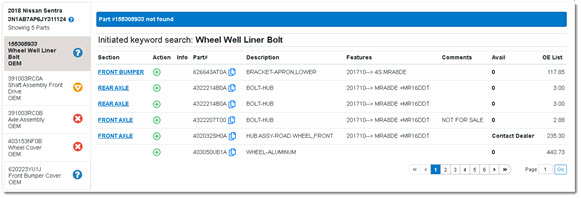
- To add the part from the search results directly to your order, click the Add icon.
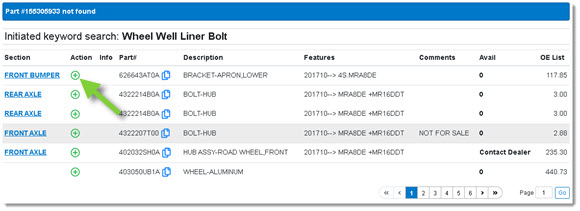
- Once added, a success message will appear.
- Once added, a success message will appear.
- To copy the part number to the computer clipboard, click the Copy icon. This allows you to paste the part number into another application. Note: There is no alert message for copying a part number.
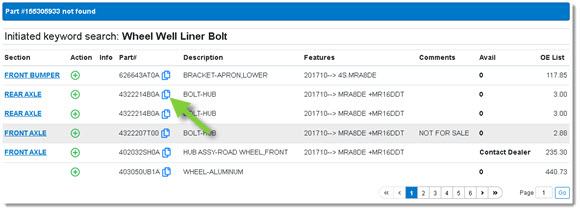
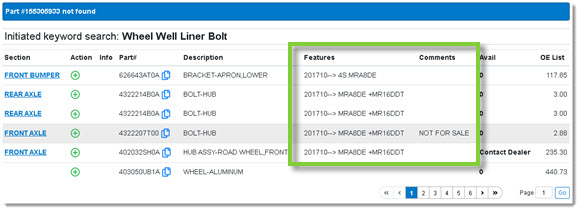
- Features and Comments for the part will be provided.
- FCA Vehicles Only: If applicable, a camera icon () will appear if OEM-provided digital photos of the part have been added to the catalog. Click the icon to view the photos. (Learn more about Viewing Digital Photos.)
- The part's price, MPL or List Price, will appear on the right.
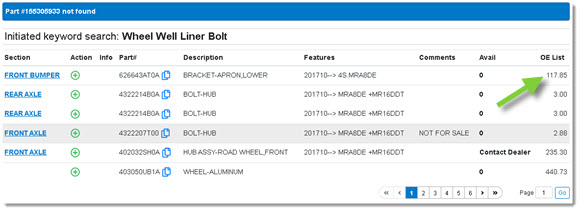
- For more information on a part in the list, click the Section name to open it.
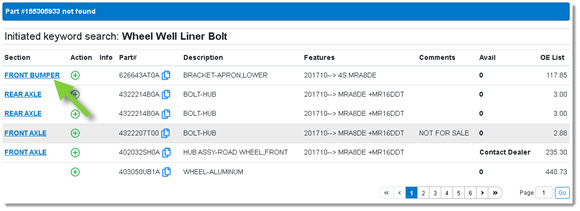
- Once inside the illustration, the selected part will be listed on the right-hand side of the new window. (Click here for more information on the details displayed.)
- Click on other callouts in the illustration to check for additional parts. (Click here to learn about callouts.)
- You can alter the illustration using the options in the top right. (Click here to learn about editing illustrations.)
- If the part appears in other sections, click the section thumbnail below the illustration to navigate to the other sections.
- Use the left-hand panel to view and switch between the parts currently in the order. Each item will show the part number and a brief description.
- FCA Vehicles Only: Use the search bar across the top or the breadcrumb navigation to search within the OEM catalog. (Learn more about Navigating the OEM Catalog.)
- To return to the unsent order, click the X in the upper right-hand corner of the window.