KB Article #4181
If your estimates have stopped importing into CollisionLink Shop, follow this workflow to resolve the issue. Please make note of any errors that display so we can assist you more efficiently if you are still having trouble.
Verify your login to the Estimate Uploader Tool
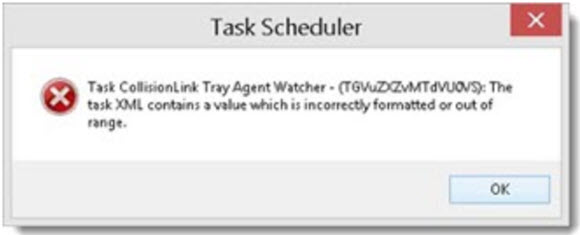
If the following error displays, you may have used a different username and password to log in to CollisionLinkShop.com and the Estimate Uploader Tool. This is the most frequent reason that estimates fail to upload.

- Determine what username and password were used to log into CollisionLinkShop.com.
- Right-click on the CollisionLink Estimate Uploader icon in the system tray.
- Click Shop Login from the menu.
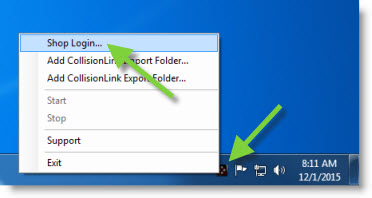
- Type the correct UserName and new Password in the boxes provided.
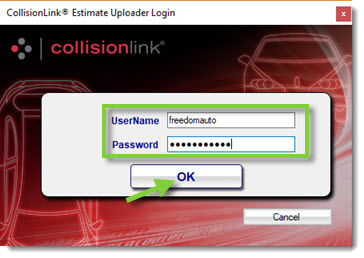
- Click OK.
- Re-export the estimate from your estimating system and verify that an unsent order is created in CollisionLink Shop. If the order still won't send, go on with the workflow.
Have you previously sent estimates on this workstation?
- No, this is a new (or updated workstation). If you're working on a new workstation, you will need to install and run the CollisionLink Estimate Uploader Tool (EUT).
- Yes. Go on with the workflow.
Can you send other estimates?
Test the Estimate Uploader Tool by sending a different estimate. You can try a different order, or create a sample order for testing purposes. Make sure the order includes parts.
- Yes, I was able to send a different estimate to CollisionLink Shop. This tells us that your Estimate Uploader Tool is set up properly. If a specific estimate won't send, look for the following possible causes:
- No parts. There are no parts in the order. To make it appear in CollisionLink Shop, add parts to the estimate.
- Already sent. Click the Jobs tab to see if your order was already sent. Each order will only import once. If you don't find the estimate there, it may have been deleted or archived and you will need to recreate the estimate.
- Supplement. If you added parts to an existing order, the estimate will import to the Supplements tab rather than the Jobs tab.
- No, I wasn't able to send any estimates. Go on with the workflow.
Is your Estimate Uploader Tool turned off?
Locate the Estimate Uploader icon in your desktop system tray. (You may need to click the triangle icon to view.) Note: If the Estimate Uploader does not display, restart your computer. 
- The Estimate Uploader Tool displays a red light (
 ) and isn't working.
- Right click on the Estimate Uploader Tool icon and click Start.
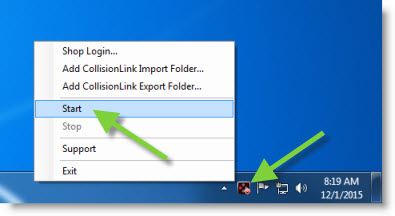
- Verify the Estimate Uploader Tool displays the green start symbol.

- Re-export the estimate from your estimating system and verify that an unsent order is created in CollisionLink Shop. If the order still won't send, go on with the workflow.
- Right click on the Estimate Uploader Tool icon and click Start.
Verify your login to the Estimate Uploader Tool
If you are still having difficulty, you may be using a mismatched or out-of-date password. This sometimes triggers the following Upload Error:

- Determine what username and password were used to log into CollisionLinkShop.com.
- Right-click on the CollisionLink Estimate Uploader icon in the system tray.
- Click Shop Login from the menu.
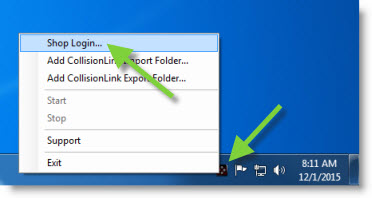
- Type the correct UserName and new Password in the boxes provided.
- Click OK.
- Re-export the estimate from your estimating system and verify that an unsent order is created in CollisionLink Shop. If the order still won't send, go on with the workflow.
Is your Estimate Uploader Tool set up correctly?
When you send an order, your estimating system exports it to a designated folder. The Estimate Uploader retrieves the order from that folder and imports it into CollisionLink Shop. If your estimates still aren't appearing, your Estimate Uploader Tool might be looking in the wrong folder.
- Locate your export path within your estimating system. (You may need to contact your administrator to verify this.)
- Verify your path in the Estimate Uploader Tool, updating if needed.
- Re-export the estimate from your estimating system and verify that an unsent order is created in CollisionLink Shop.
We're here to help! Use the contact icons in the right column to chat, email, or call one of our representatives. To streamline the help process, your OEC representative may ask for the following information: