KB Article #6324
With CollisionLink Shop's Upfront Pricing, you can see a dealer's pricing for OE part alternatives to your non-OE specific parts before sending your estimate! Upfront pricing allows you to get pricing from your dealers and complete your orders faster.
Note: You will not be able to send an order that has upfront pricing to a dealer without first reviewing the part pricing.
To send orders with upfront pricing:
- From the Unsent Orders tab, verify the dealer you want to order from is displayed in the Dealer field. If not, click the drop-down menu to select the one you want from the list.

- If your dealer offers it, you will see the View Upfront Pricing button to the left of the dealer. Click the button to view pricing. Note: You cannot send the estimate until pricing is reviewed.

- Click the VIN to view options and attributes for the vehicle and print if needed. (Learn more about viewing VIN details.)

- Review the Unsent Order Details section:
- If needed, type a repair order number in the RO # field.

- Verify the Estimator, Payer, and Mileage information and update if needed.

- If needed, type a repair order number in the RO # field.
- Next, review the Parts List.
- Non-OE parts will automatically display the OE List price for their OE alternative.

- If an automaker's icon displays next to a non-OE part line, it may qualify for a discount program if converted to an OE part. Hover your mouse over the icon to view program information. (Learn more about CollisionLink Shop OEM programs.)

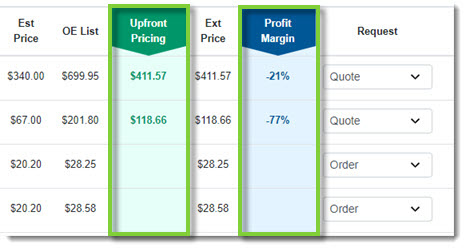
- Where applicable, review the Upfront Price displayed as an alternative to the non-OE part on your estimate and the Profit Margin column to see how much potential profit your shop will make on the OE part if purchased.
Notes:
- Profit Margin, by part line, is calculated based on the following formula: (Est. Price for that part - Upfront Price) / Est. Price for that part. For example, for the first part line in the screenshot above, Profit Margin = (340.00 - 411.57) / 340.00 = 21%.
- Some part lines may display N/A for one of the following reasons:
- The dealer has not enabled Upfront Pricing.
- The part line from your estimate is for an OE part.
- Non-OE parts will automatically display the OE List price for their OE alternative.
- For each part on the estimate, make a selection from the Request column:

- Quote: The dealer will respond with a price quote. You can then review each quote and either accept or decline it before the parts are invoiced.
- Accept OEM (Upfront Pricing only): You accept the upfront price for the OE part and would like to order it instead of the non-OE part that was initially on your estimate.
- Order: The dealer will process and invoice these parts upon receipt of the order.
- Do Not Process: This will notify the dealer you have the part in stock and they should not send the part.
- Use Add Part if items are missing from the order. (Learn more about adding parts to your order.)
- If needed, add notes or photos to the order.

- Use the Add Note box to include any special instructions to the dealer--for example, indicating a desired ship date. (Learn more about using notes with CollisionLink.)
- Pictures can be sent to your dealer with the Add Image function. Use this feature for hard-to-identify parts or unique decals. (Learn more about sending photos to your dealer.)
- Once you've verified all details of the order are correct, click Send to submit your order to the dealer.

- If payer information wasn't added, you may be asked for it before submitting the order.
- Choose the appropriate payer option (Insurance, Fleet Company, or Customer Pay).

- If the Payer field is empty, add the payer's name.

- When finished, click Send.
- Choose the appropriate payer option (Insurance, Fleet Company, or Customer Pay).
- If a dealer's upfront pricing has changed, you will see the following warning message. Click Refresh to refresh upfront pricing in the estimate and review your choices before clicking Send.

- If successful, a confirmation message will display in the upper right-hand corner.

- Your order will move to the Jobs tab, where you can track its progress and view response and deliver information from your dealer. (Learn more about reviewing dealer responses.)